Give your AI coding assistant the AppJars documentation
The AppJars Docs MCP Server lets Claude Code, Cursor, VS Code and other coding assistants search the AppJars documentation while they write your code.
Ask a coding assistant to add a feature with a library it has never seen, and it will rarely say “I don’t know”. It will write code that looks right: a plausible class name, a property key that follows the usual conventions, a method that would make sense if it existed. Then the application fails to start, or starts and quietly ignores the setting.
AppJars is new. The modules, their Spring properties and their extension points were published after most models were trained, so an assistant has nothing to go on but guesses. The answers are in the AppJars documentation; the assistant just can’t see it.
The AppJars Docs MCP Server fixes that. It gives your assistant two tools to search and read the official documentation while it works, so it can look up the real property key instead of inventing one.
What it is #
The Model Context Protocol (MCP) is the standard way coding assistants call external tools. Claude Code, Claude Desktop, Cursor, VS Code with GitHub Copilot, Windsurf, Cline, Zed, JetBrains AI Assistant, Codex CLI, Gemini CLI and many others support it.
The AppJars Docs MCP Server is a small local process that your assistant starts when it needs
it. It runs
@serverless-dna/mkdocs-mcp
pointed at docs.appjars.com, and exposes two tools:
| Tool | Input | What it returns |
|---|---|---|
searchMkDoc | search: what to look for | Up to ten matching sections, each with its title, URL, a relevance score, a short preview and the page it belongs to. |
fetchMkDoc | url: a documentation page | The full page converted to Markdown, plus its code examples as a separate list. |
The search runs over the same index that powers the search box on the documentation site, so it covers every AppJar: getting-started guides, developer guides with their configuration properties, administrator features and the cross-module reference pages.
There is nothing to sign up for and nothing to host. It needs no account and no API key. It
only reads the public documentation, and the only requirement is Node.js 18 or later on your
PATH, so that npx can download and start the package.
Add it to your assistant #
Every client uses a variation of the same stdio server entry. The last argument is a description that the server passes to the model as the tool description, which is how the assistant knows when to call it.
Claude Code #
One command:
claude mcp add appjars-docs -- npx -y @serverless-dna/mkdocs-mcp https://docs.appjars.com/ "Official AppJars documentation. Use this to search for guides, references, and integration steps for the AppJars suite of full-stack functional modules for Java enterprise applications built on Spring Boot and Vaadin, including User Manager, AI Support, Activity Log, Configuration Manager, Dynamic Menu, Email Manager, I18N Manager, Issue Tracker, Process Manager, and User Profile."
To share it with everyone working on a project, put it in .mcp.json at the project root
instead (or in ~/.claude.json to have it in every project):
{
  "mcpServers": {
    "appjars-docs": {
      "command": "npx",
      "args": [
        "-y",
        "@serverless-dna/mkdocs-mcp",
        "https://docs.appjars.com/",
        "Official AppJars documentation. Use this to search for guides, references, and integration steps for the AppJars suite of full-stack functional modules for Java enterprise applications built on Spring Boot and Vaadin, including User Manager, AI Support, Activity Log, Configuration Manager, Dynamic Menu, Email Manager, I18N Manager, Issue Tracker, Process Manager, and User Profile."
      ]
    }
  }
}
Restart any running Claude Code session and run /mcp to check that appjars-docs is
connected.
Cursor #
Use the same mcpServers block as above, in .cursor/mcp.json for one project or
~/.cursor/mcp.json for all of them, then enable the server under Cursor Settings → MCP.
Claude Desktop, Windsurf, Cline, Gemini CLI, JetBrains AI Assistant and LM Studio accept the
same block too; only the file it goes in changes.
VS Code with GitHub Copilot #
VS Code 1.99 or later, with Copilot in Agent mode. Its format differs in two ways: the key is
servers instead of mcpServers, and each server needs an explicit type. Create
.vscode/mcp.json in your workspace:
{
  "servers": {
    "appjars-docs": {
      "type": "stdio",
      "command": "npx",
      "args": [
        "-y",
        "@serverless-dna/mkdocs-mcp",
        "https://docs.appjars.com/",
        "Official AppJars documentation. Use this to search for guides, references, and integration steps for the AppJars suite of full-stack functional modules for Java enterprise applications built on Spring Boot and Vaadin, including User Manager, AI Support, Activity Log, Configuration Manager, Dynamic Menu, Email Manager, I18N Manager, Issue Tracker, Process Manager, and User Profile."
      ]
    }
  }
}
Codex CLI #
Codex reads TOML from ~/.codex/config.toml:
[mcp_servers.appjars-docs]
command = "npx"
args = [
  "-y",
  "@serverless-dna/mkdocs-mcp",
  "https://docs.appjars.com/",
  "Official AppJars documentation. Use this to search for guides, references, and integration steps for the AppJars suite of full-stack functional modules for Java enterprise applications built on Spring Boot and Vaadin, including User Manager, AI Support, Activity Log, Configuration Manager, Dynamic Menu, Email Manager, I18N Manager, Issue Tracker, Process Manager, and User Profile."
]
Everything else #
mcp.appjars.com has a copy button and the exact file location for
fifteen clients, including Zed (which calls them context servers), Continue’s YAML, OpenCode
and Junie. Any client that can launch a local stdio process works: the command is npx, and
the arguments are -y @serverless-dna/mkdocs-mcp https://docs.appjars.com/ followed by the
description.
What the assistant gets back #
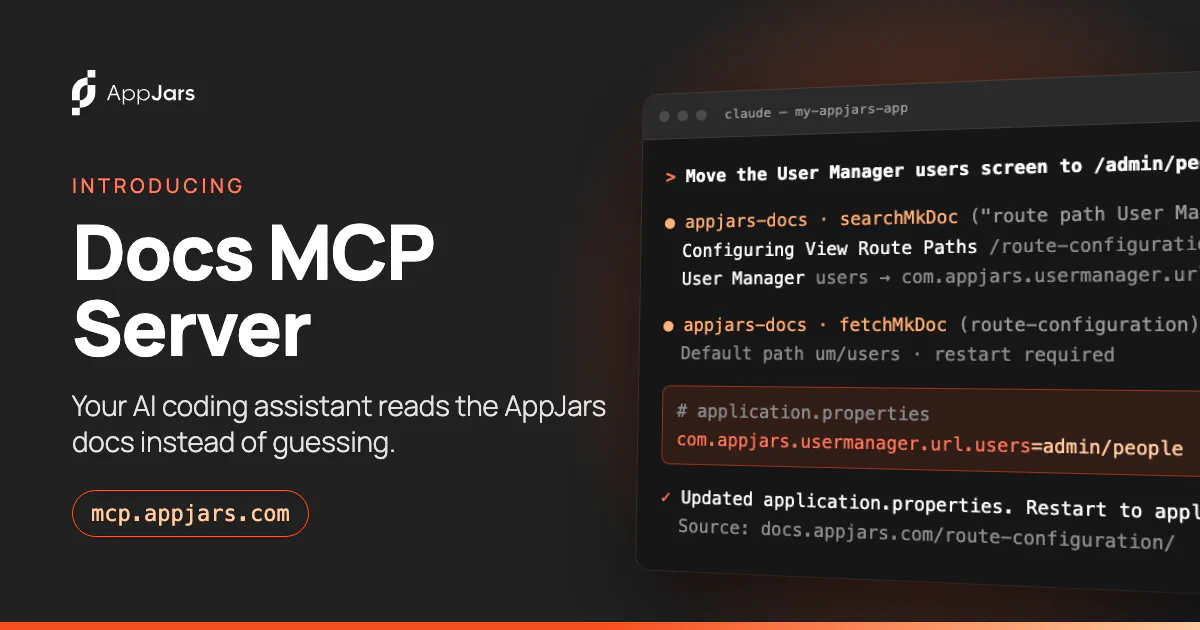
Say you added User Manager to an application and want its users screen at /admin/people
instead of the default address. You ask:
Move the User Manager users screen to /admin/people.
Without the docs, an assistant has to guess how AppJars registers its routes. It might
subclass the view to put a new @Route on it, or invent a property that sounds right. With
the MCP server connected, it can look it up first. It calls searchMkDoc with something like
change the route path of the User Manager users view, and the top results are:
Configuring View Route Paths   https://docs.appjars.com/route-configuration/#configuring-view-route-paths
User Manager                   https://docs.appjars.com/route-configuration/#user-manager
Users management               https://docs.appjars.com/user-manager/administrator-features/users/
The preview of the second result already holds the answer: the Users view is
com.appjars.usermanager.url.users, default path um/users. The assistant then calls
fetchMkDoc on the route configuration page and reads the rest of it. Each AppJar declares its
view paths as Spring placeholders with defaults, so the change is one line in
application.properties:
com.appjars.usermanager.url.users=admin/people
The same page tells it two things a guess would miss: the application must restart for the
new path to take effect, and any code that navigates to the view with
UI.getCurrent().navigate(...) has to use the new path. It also lists the property for every
other view of every AppJar, so the next question costs one lookup.
The result is a one-line change, made the way the documentation says, with a link to the page it came from so you can check it yourself.
Tips #
- Name the server when you need it to. Assistants call it on their own when a question is clearly about AppJars, but “check the appjars-docs MCP first” in a prompt removes any doubt.
- Ask it to cite. Every result carries its documentation URL. Asking for the source makes any answer the docs don’t support easy to spot.
- Use it alongside
AGENTS.md. Projects generated with Craft include anAGENTS.mdthat describes the project’s own layout and rules. The MCP server covers the modules;AGENTS.mdcovers how they are wired into your project. - It follows the docs. The server reads the published documentation, so when a release updates the docs, your assistant sees the change without you updating anything.
Try it #
Add the server with the snippet for your client from mcp.appjars.com, then ask something only the documentation would know. If you don’t have an AppJars project yet, generate one with Craft in a couple of minutes, browse the catalog, or read the documentation yourself.
If your assistant still gets something wrong with the server connected, that usually means the documentation is missing something. Tell us what you asked and we’ll fix the docs.
Keep reading
Introducing Craft: start your next Java app with the parts already written
Craft is a free, browser-based generator that builds a runnable Spring Boot and Vaadin 25 project with the AppJars modules you choose already wired in.