Introducing Craft: start your next Java app with the parts already written
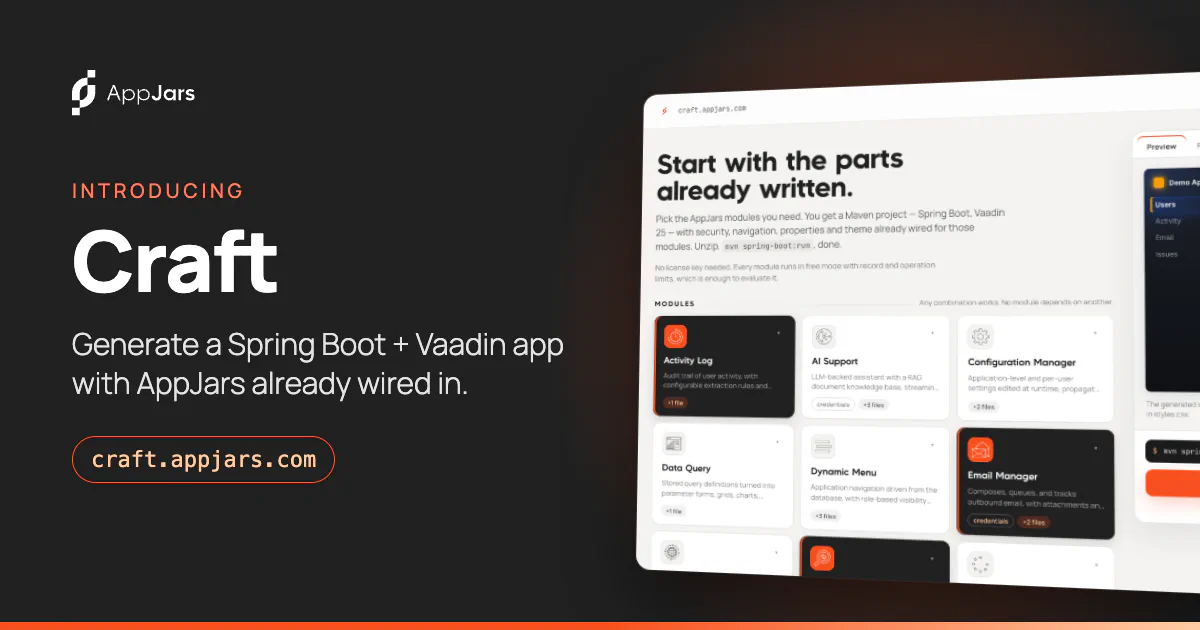
Craft is a free, browser-based generator that builds a runnable Spring Boot and Vaadin 25 project with the AppJars modules you choose already wired in.
Every business application starts the same way. Before you write the first line of the feature your customer actually asked for, someone has to build a login screen, users and roles, a navigation menu, an audit trail, outgoing email, runtime settings, translations and a way to run background jobs. It is necessary work, it is rarely the interesting part, and it has usually been built a dozen times before in the same company.
We built AppJars to take that work off the table: each AppJar is a production-ready module, backend and Vaadin UI, that you add to a Spring Boot application as a Maven dependency. One step was still left to you, though: wiring the modules into a project. Today we are closing that gap with Craft.
What Craft is #
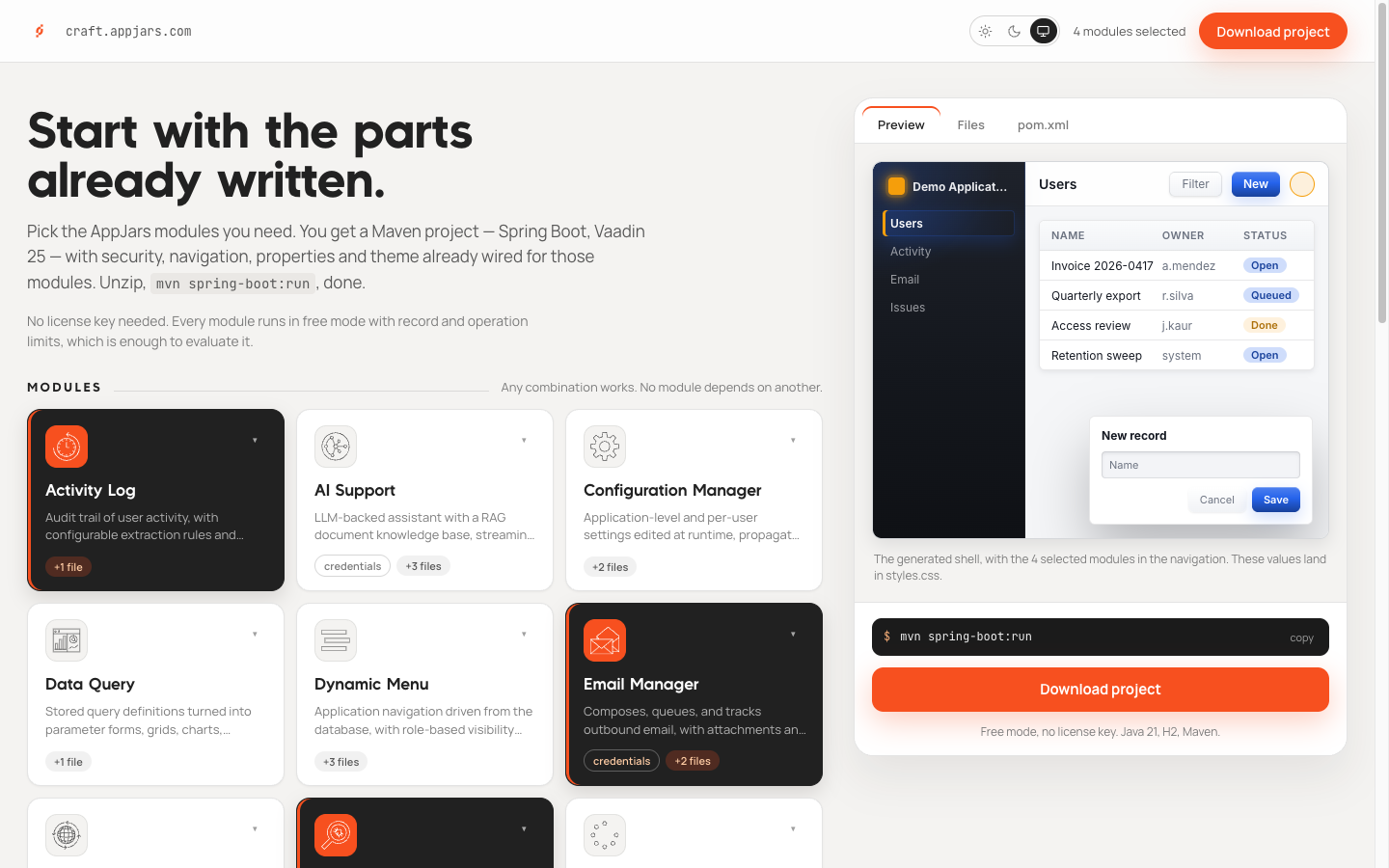
Craft is a project generator that runs entirely in your browser at craft.appjars.com. You pick the AppJars you need and download a Maven project, Spring Boot and Vaadin 25, with security, navigation, properties and the theme already set up for those modules. Then you unzip it and run:
mvn spring-boot:run
Or leave Include Docker deployment selected and start the complete application, including its backend services, with:
docker compose up -d
You don’t need an account or a license key. Every module runs in free mode, with record and operation limits that are enough to evaluate it. When you move to production, you add your license and the limits go away. The code stays exactly the same.
How it works #
1. Pick your modules #
The page lists all eleven AppJars: Activity Log, AI Support, Configuration Manager, Data Query, Dynamic Menu, Email Manager, I18N Manager, Issue Tracker, Process Manager, User Manager and User Profile. Select any combination. No module depends on another, so you can start with one and add the rest later. The Full Bundle card selects all of them at once.
Each card tells you how many files the module adds to your project. As you select modules, the preview adds their views to the generated application’s navigation.
2. Describe your project #
Fill in the usual Maven coordinates (group id, artifact id, package name) and the application’s display name. Then choose:
- Java 21 or Java 25.
- H2 or PostgreSQL. H2 needs no setup, which makes it the fastest way to try things out.
PostgreSQL comes with a
compose.backend.yamlthat starts the database for you. AI Support requires PostgreSQL because its knowledge base uses vector search. - A Docker deployment, selected by default. It includes a multi-stage
Dockerfilethat builds the production application inside Docker, so the host does not need Java or Maven. Itscompose.yamlalways means the complete deployment: the application and every required backend service together. Uncheck the option if you only want the Maven/IDE workflow.
3. Make it look like yours #
Pick a starting theme (Vaadin’s Lumo or Aura, or one of Craft’s two variants, Graphite
and Marble), then set the primary and secondary colors, the font family and the corner
radius. The preview updates as you go. All of it is written to a single styles.css as plain
CSS custom properties, so you can change it later in any text editor without learning a theming
system.
4. Download and run #
Click Download project and unzip the file. For local development, run
mvn spring-boot:run; PostgreSQL projects tell you how to start the database first.
With the default Include Docker deployment option, one command from the project root starts the complete environment:
docker compose up -d
On the first run, Docker builds the optimized Vaadin application and downloads the required
images. PostgreSQL and pgvector containers have a health check, and Compose starts the application
only after its database reports healthy. The app is then available at
localhost:8080. You can change the published application and database
ports in .env.
When you want to run the application from Maven or your IDE but keep its backend in containers, start only the backend stack:
docker compose -f compose.backend.yaml up -d
The generated README.md documents both workflows and, when a security module is included, tells
you which user to log in with.
What you get in the zip #
Craft doesn’t produce a toy. It produces the same project a senior developer would set up by hand, with a comment next to each decision that isn’t obvious:
| File | What it does |
|---|---|
pom.xml | Spring Boot parent, the Vaadin BOM, the AppJars Maven repository, every AppJar pinned to a released version, and a production profile for the optimized frontend build. |
Application.java | Entry point with the component, entity and Vaadin package scanning each module needs. |
SecurityConfiguration.java and LoginView.java | Spring Security with Vaadin’s security configurer, generated when you pick a module that provides authentication (User Manager or Issue Tracker). |
MainLayout.java | The application shell. The side navigation lists every view of every selected module, and each entry checks access before it is shown. With Dynamic Menu selected, the menu comes from the database instead and MainLayout declares no entries. |
config/*Config.java | One small class per module that places its views inside your layout. |
application.properties | Database, Vaadin and per-module settings, grouped and commented. |
styles.css | Your theme as CSS variables. |
README.md and AGENTS.md | How to run, build and extend the project, for you and for the coding agent you work with. |
compose.yaml, Dockerfile, .dockerignore | The complete containerized application and its required backend services when Docker deployment is selected. |
compose.backend.yaml | PostgreSQL or pgvector on its own for Maven and IDE development. It is generated whenever the selected project needs that backend, independently of the Docker deployment option. |
.env.example | Configurable host ports and the environment settings required by the selected modules. |
Two details are worth calling out.
Modules know about each other. When you combine modules, Craft wires the integrations between them. With Configuration Manager and User Manager together, per-user settings are tied to your real users. If both User Manager and Issue Tracker are selected, User Manager handles authentication for the whole application. With Dynamic Menu selected, it takes over the whole navigation: on first start it fills the menu with the home page and every view of the other modules, and from then on you edit the menu at runtime in Menu Items instead of in code. Entries that point at AppJars views don’t count toward the free-mode limit, so the complete menu works without a license.
Identical choices produce an identical project. Generation is deterministic and happens entirely in your browser.
What will you build? Ten starting points #
The fastest way to understand Craft is to picture the application you’d build with it. Here are some combinations we’ve seen work well. Each one is a starting point: select the modules, download the project and start writing the part only you can write.
An internal back office #
Most companies have a few internal tools held together with spreadsheets. Start with who can do what, a menu your operations team can rearrange without a deploy, settings you can change at runtime, and a record of who changed what.


A customer support desk #
Tickets with workflows and time tracking, notification emails, and an AI assistant that answers from your own documentation before the ticket reaches a human. Choose PostgreSQL for this one.


A reporting and operations portal #
Turn stored queries into parameter forms, grids, charts, dashboards and PDF reports. Schedule the heavy ones overnight with cron expressions and email the results to the people who need them in the morning.


A multilingual SaaS MVP #
If you plan to sell in more than one market, build internationalization in from day one: users and roles, profiles with avatars, translations your team edits at runtime, and per-customer settings.

An audit-ready application for a regulated industry #
Finance, healthcare and the public sector ask the same questions: who accessed what, and when? Pair fine-grained access rules with an activity trail and automatic retention, and hand auditors reports they can run themselves.
A knowledge assistant for your team #
Upload manuals, policies and procedures to a document knowledge base and give your team a streaming chat that answers from them. AI Support can also reach people on WhatsApp.
An agency or consulting workspace #
Projects, issues, custom fields and time tracking for client work, status updates by email, and Data Query reports on the hours logged, by client and by project, at the end of the month.
A back-end control room for integrations #
Many systems are mostly invisible: they sync data, call partner APIs and send notifications. Give yours a proper home: scheduled jobs with execution history and manual triggers, runtime configuration for endpoints and feature flags, and Email Manager to queue the notifications your jobs send.
A white-label product for several customers #
Same code, different look and navigation for each customer: dynamic menus with role-based visibility, runtime settings per installation, and translations for every market. Use Craft’s appearance settings to create each customer’s first theme in minutes.
Everything, to explore #
Not sure where to start? Select the Full Bundle card, download the project and click through every module in one application. It’s the quickest way to see what AppJars can already do for you.

Tips for getting the most out of it #
- Start small. You can add modules later: each one is a Maven dependency plus a little configuration, and generating a second project in Craft shows you exactly what to copy.
- Keep what you don’t need out of the menu. Remove navigation entries from
MainLayout, or in Menu Items if you use Dynamic Menu, without removing the module. The routes stay registered, so the views are still there when you want them. - Let your coding agent read
AGENTS.md. It describes the project layout and the rules that are easy to break, such as keeping your base package in@EnableVaadinor keeping an access annotation on the layout. Agents that read it make fewer confident mistakes. - Build for production with
mvn clean package -Pproductionand run the resulting jar like any other Spring Boot application. - Ship the whole environment by selecting Docker deployment and using
docker compose up -d. Craft builds the production jar inside the image and keeps the application and its services on the same Compose network.
Try it now #
Open craft.appjars.com, pick a few modules and have an application running in minutes. If you want to go deeper first, browse the catalog or read the documentation. If you have an idea for a combination we didn’t list, or something you’d like Craft to generate, tell us. We read every message.
The best part of your application is the part nobody else can write. Craft exists so you can get to it sooner.